Updates timeline
An updates timeline clients actually read
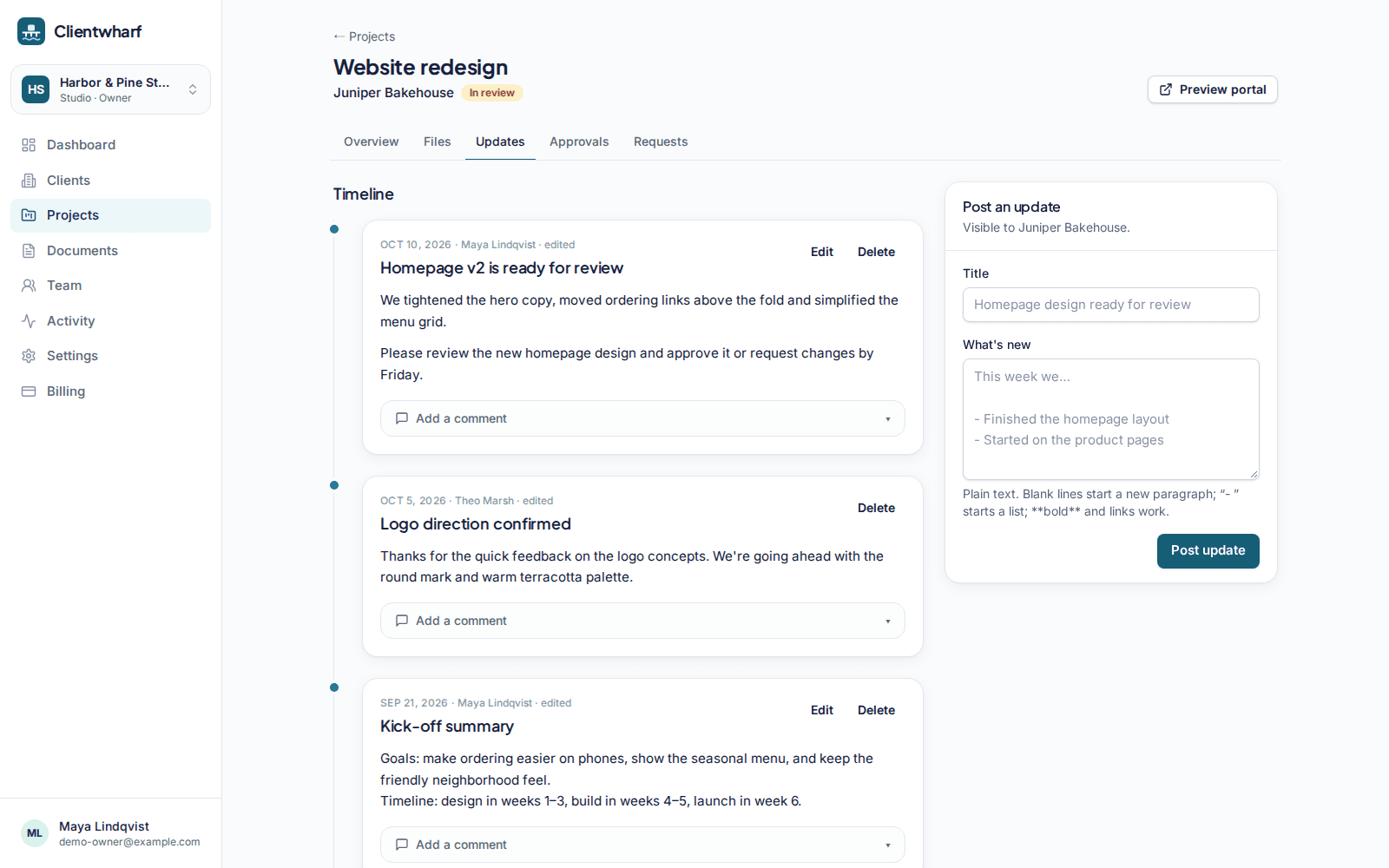
Post short progress updates to a project. Clients see them as a timeline in their portal, newest first, and can reply with comments. No more reconstructing a project's history from an inbox.
14-day free trial. No card required.
Write it once, keep it in context
Each update belongs to a project, so the history of a piece of work stays with the work. Mention the files or approvals it relates to, and clients find them one click away in the same portal.
Comments where the work is
Clients and your team can comment on updates, approvals and requests. Conversations stay attached to the thing being discussed instead of drifting across email threads.
Notifications people can control
Clients get an email when you post an update, with a link straight to the portal. Each person can choose instant emails, a daily digest or no emails for each type of notification.
Updates timeline: common questions
Can clients post updates?
Updates are posted by your team. Clients reply with comments on any update.
Can I stop clients receiving an email for every update?
Each person controls their own notifications and can switch to a daily digest or turn a notification type off.
Can I edit an update after posting it?
The person who posted an update can edit it, and the author or an owner or admin can delete it. Approval decisions are different: they are kept as a permanent record.
Related features
Approvals
Ask for sign-off on a specific version and keep a permanent record of the answer.
Requests
A checklist of what you need from the client, with uploads and due dates.
Client portals
A private portal per client with everything that belongs to them, and nothing that doesn't.
Give every client one calm place to find their work
Try Clientwharf free for 14 days. No card required, and nothing is deleted if you decide not to continue.