Client experience
What Is a Client Portal (and Do Freelancers Need One?)
A plain-English guide to client portals: what they are, what they replace, the signs you need one, and how to choose one as a freelancer or small agency.
By Clientwharf TeamPublished 7 min read
On this page
If you deliver work to clients, you already have a client portal. It is just spread across your inbox, a shared drive, a chat app, a few calendar invites and whatever your client printed out and scribbled on. A dedicated client portal pulls those pieces into one private place per client.
This guide explains what a client portal is, what it replaces, what a good one includes, and how to tell whether you actually need one, without the sales pitch.
A plain definition
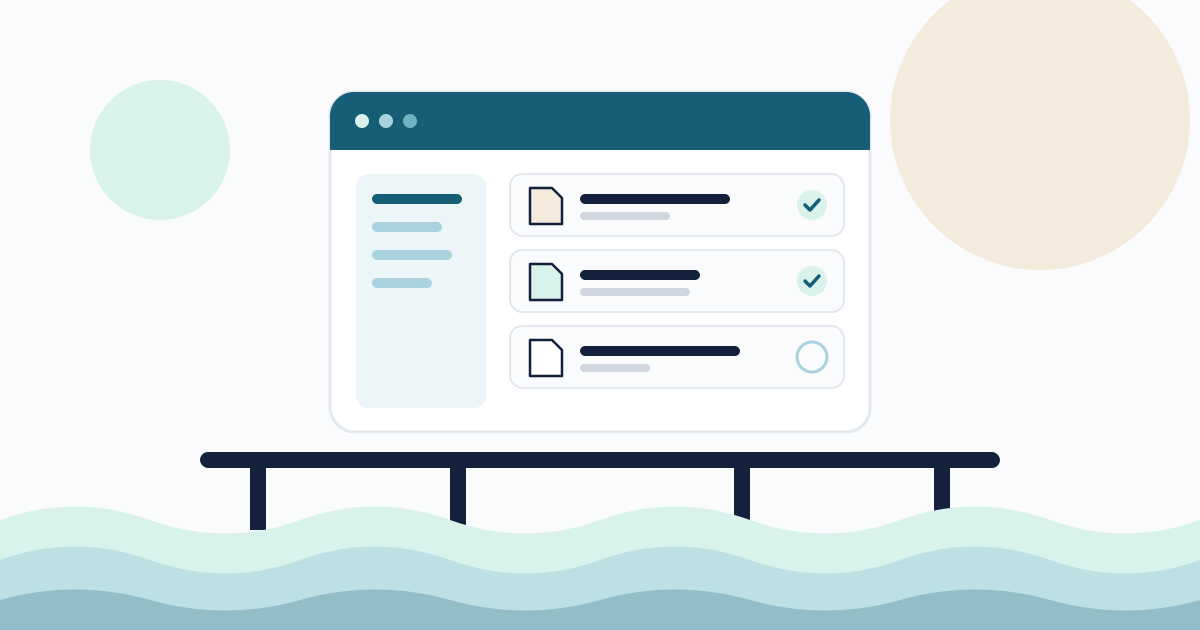
A client portal is a private online space, shared between you and one client, where the work changes hands. Typically it holds:
- the files you deliver and the files the client sends you,
- progress updates on each project,
- requests for approval and the client's decisions,
- a short list of things you need from the client,
- comments attached to the specific file or update they relate to.
The important word is private. Each client sees only their own projects. Your other clients, your internal notes and your team's task list stay out of view.
A portal is not a replacement for talking to your clients. Calls and quick messages still have their place. The portal is where the outcome of those conversations ends up, so nobody has to dig through a thread to find the latest file or the decision that was made last Tuesday.
What a client portal replaces
Most freelancers and small agencies run client work on a mix of tools that were never designed to work together. Here is what a portal typically absorbs.
Long email threads. A single project can produce dozens of messages with overlapping replies, forwarded attachments and side conversations. Finding "the version the client actually approved" becomes detective work.
Attachments that bounce. Email was not built for large creative files. Gmail caps personal-account attachments at 25 MB and swaps anything larger for a Google Drive link (Gmail Help). Microsoft lists a 20 MB limit for internet accounts in Outlook and a default of 10 MB for Exchange business accounts (Microsoft Support). A video cut, a print-ready PDF or a folder of photography easily exceeds both.
Loose drive links. Shared folders solve the size problem but create new ones: links that anyone can forward, permissions nobody remembers setting, and folders named Final, Final 2 and Final USE THIS.
Decisions with no record. "Looks good" in a chat message is an approval, technically. Six weeks later, when someone asks which version was signed off, it is hard to prove.
The "can you resend that?" loop. When files live in an inbox, clients lose them, and you spend time re-sending things you already delivered.
What a good client portal includes
Features vary by product, but the useful ones tend to fall into the same handful of building blocks.
Files with clear versions
Upload once and keep every version (v1, v2, v3) attached to the same deliverable instead of creating new copies. Clients should be able to preview common formats like images and PDFs in the browser and download the latest version without asking. Downloads should use private, expiring links rather than public URLs.
A timeline of updates
Short progress notes in date order: what happened, what is next, and anything the client needs to know. A timeline gives clients the "where are we?" answer before they need to ask for it.
Approvals with a record
Instead of "Does this look OK?" in an email, you request an approval on a specific file or version. The client either approves or asks for changes with a comment, and the portal records who decided, on which version, and when. For more on this, see our guide to getting client approvals faster.
Requests and checklists
Onboarding and production both depend on things only the client can provide: logo files, copy, brand guidelines, logins, feedback. A request list shows the client exactly what is outstanding and lets them mark items done or upload files directly.
Comments in context
Comments attached to the file, update or approval they discuss are far easier to follow than a reply buried in a thread about something else.
Your branding
A portal that carries your logo and colors feels like part of your service rather than another tool the client has to learn.
Do freelancers need one? A quick self-check
Not every freelancer needs a portal on day one. Work through these signals honestly.
You probably need a client portal if:
- you work with more than three or four active clients at a time,
- files regularly go through two or more versions before sign-off,
- clients ask you to resend files they already received,
- you have had a disagreement about what was approved,
- more than one person on the client side gives feedback,
- you hand over a set of final files at the end of every project.
You can probably wait if:
- you run one small project at a time with a single contact,
- deliverables are small and rarely revised,
- your current system has never caused a missed deadline or a dispute.
If you are somewhere in between, the deciding question is simple: how much time per week do you spend finding, re-sending or confirming things? If the honest answer is "an hour or more," a portal is likely worth testing.
Client portal vs. shared drive vs. project management tool
These tools overlap, so it helps to be clear about what each one is for.
| Shared drive | Project management tool | Client portal | |
|---|---|---|---|
| Built for | Storing files | Planning internal work | Handing work to a client |
| Who it is for | Anyone with the link | Your team | You and one client |
| Versions | Usually manual copies | Varies | Tied to each deliverable |
| Approvals | Not built in | Sometimes, internal | Recorded per version |
| Client experience | Folders and file names | Often cluttered with internal tasks | Only what the client needs |
Many teams keep using all three. The drive stays as an internal archive, the project tool tracks internal tasks, and the portal is the single client-facing surface.
What clients experience
It is easy to evaluate a portal only from your own side. Spend equal time on the client's view, because their adoption decides whether the portal works at all.
A good client experience means:
- Easy sign-in. One-time email links work well for clients who will not remember another password.
- An obvious next step. When the client opens the portal, they should see what needs their attention: an approval, a request, a new update.
- Nothing irrelevant. No internal task lists, time logs or team chatter.
- Predictable notifications. An email when something needs them, with a link straight to it, and a way to adjust how often they hear from you.
There is a security benefit here too. Phishing messages work by imitating ordinary requests, and CISA advises confirming unexpected requests through a channel you already trust rather than through the message itself (CISA). When your clients know that every file and approval request lives in one familiar place, an unexpected "please download this invoice" email stands out instead of blending in.
How to choose a client portal
Use these questions as a short evaluation checklist:
- Is each client's space truly private? Clients must never see each other's work.
- How do clients sign in? Try it yourself as a client before committing.
- How are files delivered? Look for version history, previews, and private, expiring download links.
- Are approvals recorded? You want the who, what version and when, ideally exportable.
- Can clients send you things? Requests and uploads matter as much as deliveries.
- Does it carry your brand? Logo and accent color at a minimum.
- Is pricing clear? Look for a stated currency, billing period and what happens if you stop paying. Can you still export your data?
- Can you leave? A full data export (files plus project history) protects you if your needs change.
Clientwharf is one option built around exactly these handover pieces: each client gets a private, branded client portal with versioned files, an updates timeline, recorded approvals and request checklists. Whatever you choose, test it with one real client before moving everyone over.
How to introduce a portal to existing clients
Clients are used to email, so the switch works best when it is framed around their convenience. A short message is enough:
Hi Dana, starting with the spring campaign, I'll share files, updates and approval requests in a private project page just for your team. You'll get an email whenever something needs you, with a link straight to it. No password needed. Everything from earlier projects stays where it is. If anything feels clunky, tell me and I'll adjust.
Then follow three rules for the first few weeks:
- Put everything in the portal, even when you also mention it in a call. If some files still arrive by email, clients learn that the portal is optional.
- Reply to emailed feedback by moving it. "Thanks, I've added this as a comment on v2 so the whole team can see it."
- Use the portal at handover. The final delivery is the moment clients appreciate a tidy record most. Our project handoff checklist covers what to include.
The short answer
A client portal is a private, organized place to hand over work. It is not essential for every freelancer, but once you have several clients, several file versions per deliverable or more than one decision-maker, it saves time on both sides and gives you a clear record of what was delivered and approved. Start with one client, keep everything in one place, and judge it by how often you hear "can you resend that?" afterwards.
Frequently asked questions
What is a client portal in simple terms?
A client portal is a private, password- or link-protected space where a freelancer or agency shares files, progress updates, approval requests and to-dos with one specific client. It replaces scattered email threads and shared-drive links with a single place the client can always return to.
Is a client portal the same as a project management tool?
Not quite. Project management tools are built for your internal team to plan and track tasks. A client portal is built for the handover side: what the client needs to see, review, approve or provide. Many teams use both, keeping internal detail in their own tools and sharing only the client-facing parts in the portal.
Do solo freelancers really need a client portal?
Not always. If you run one or two small projects at a time and clients rarely lose track of files or decisions, email can be enough. A portal starts to pay off when you juggle several clients, send many file versions, or need a clear record of who approved what and when.
Will my clients need to create an account?
It depends on the tool. Some portals require a full account with a password; others let clients sign in with a one-time email link. For busy clients, the less setup the better, so check the sign-in experience before you choose.
Is a client portal more secure than email?
It can be, if it keeps each client's space private, uses encrypted connections and short-lived download links, and gives you control over who has access. It also gives clients one predictable place to look, which makes unexpected links in email easier to treat with suspicion.
Sources
- Gmail Help: Attachment size limit(support.google.com)
- Microsoft Support: Send large files with Outlook(support.microsoft.com)
- CISA: Avoiding Social Engineering and Phishing Attacks(cisa.gov)